
The Dig Deep Sim is a plugin emulation of the Dig Deep pedal family, available for both Windows and macOS.
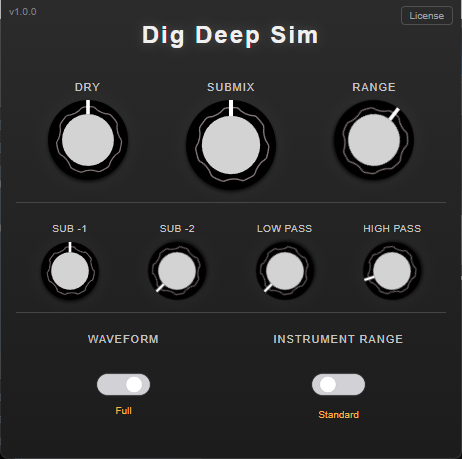
Instrument Range is a coarse variation of the Range parameter. Set it to Standard for instruments with the lowest string tuned to E or within 3 to 4 semitones of that. Set it to Low for lower tunings or bass guitar. This is not a strict rule, as it depends on many factors, not least the isolation you want to achieve.
All the parameters of the plugin are available on the Dig Deep MK3. To adjust for the Dig Deep MK1:
- Leave Range as is
- Set Sub-2 to zero
- Set Sub-1 to max and adjust the Sub level with Sub Mix
- Set Wave to Full
- Set High Pass Filter to zero
- Instrument Range: Standard only
The demo version mutes the Sub effect a few seconds every 90 seconds.
Windows
Plugin:
DEMO:
FULL:
Standalone application:
MacOS
Plugin:
DEMO:
FULL:
Installation Guide
Windows – VST3 Plugin
- Extract the ZIP file.
You’ll get:Dig Deep Sim.vst3 - Copy the plugin to the VST3 folder:
C:\Program Files\Common Files\VST3\ - Open your DAW and rescan plugins if needed.
The plugin will appear under:
Manufacturer: OPFXS
Name: Dig Deep Sim
macOS – VST3 Plugin
- Extract the ZIP file.
You’ll get:Dig Deep Sim.vst3 - Move the plugin to the VST3 folder:
/Library/Audio/Plug-Ins/VST3/
(Or for single-user installation:~/Library/Audio/Plug-Ins/VST3/) - Open your DAW and rescan plugins if needed.
The plugin will appear under:
Manufacturer: OPFXS
Name: Dig Deep Sim
macOS – Audio Unit (AU) Plugin
- Extract the ZIP file.
You’ll get:Dig Deep Sim.component - Move the plugin to the Components folder:
/Library/Audio/Plug-Ins/Components/
(Or for single-user installation:~/Library/Audio/Plug-Ins/Components/) - Open your DAW (Logic Pro, GarageBand, Ableton Live, etc.) and rescan plugins if needed.
The plugin will appear under OPFXS.
macOS Security: Dig Deep Sim is digitally signed and notarized by Apple for secure installation.